Punchy
A logo tool for geometric marks: place simple shapes, set each one to add or cut, drag until it looks right, and export one clean path.
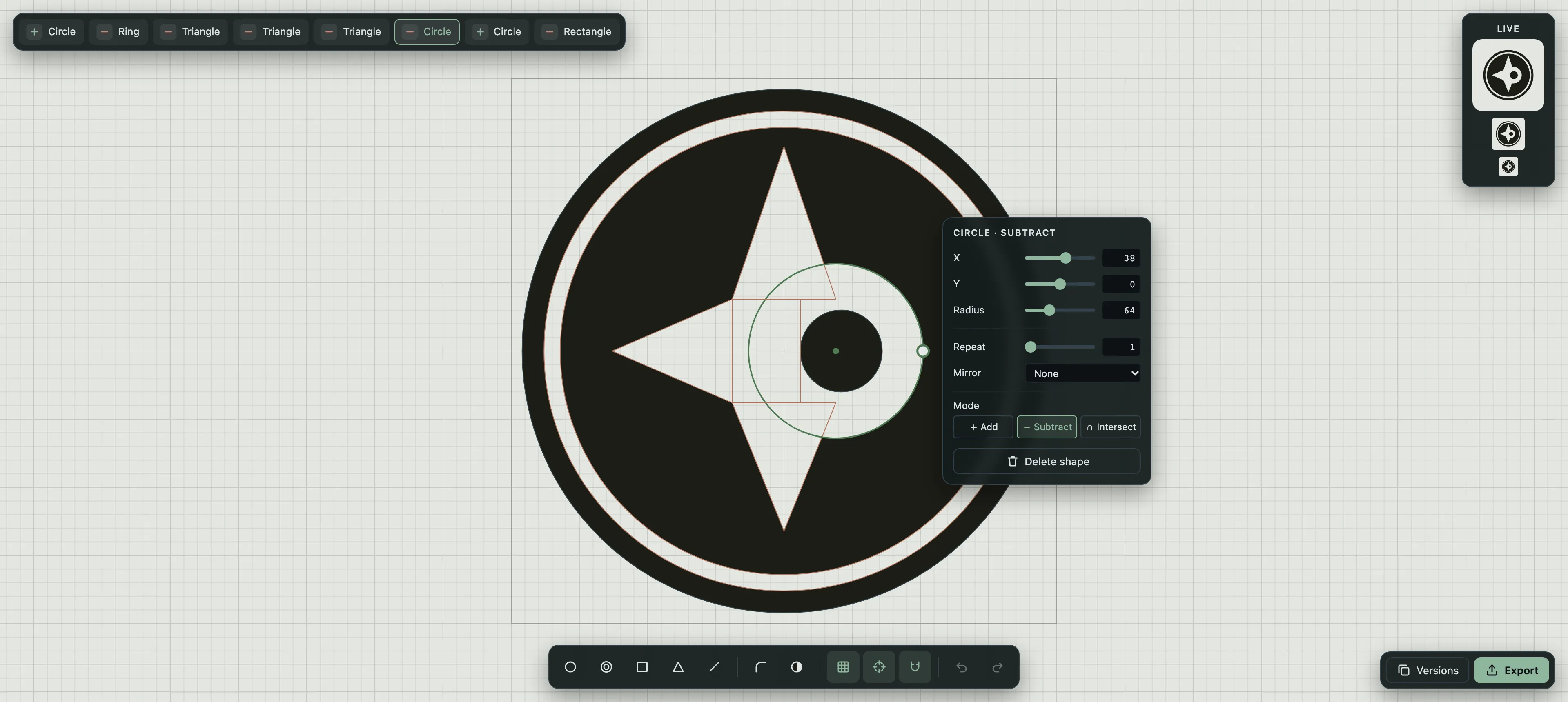 Click here to open the tool full screen
Punchy is a desktop tool. Open this page on a larger screen to use it here.
The stage wants the whole window. Open it full screen, add a circle, then add a second one and set it to subtract.
Open full screenWhat it's for
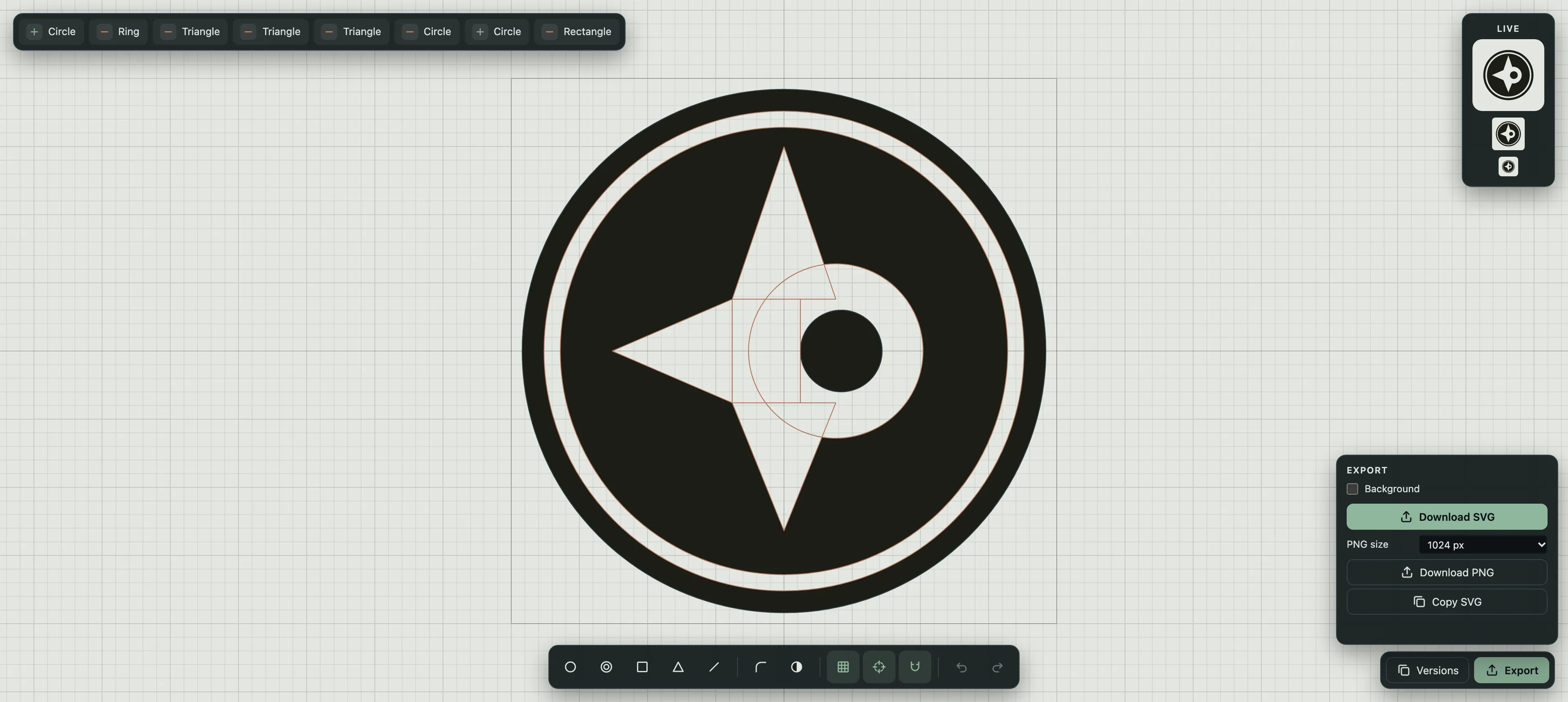
The last three logos I made were all built from the same few things: circles, rings, and straight cuts. The newest is a compass, a disc with a star cut out of it and a letter cut out of the star.
Drawing marks like that in Illustrator and Figma kept going wrong in four ways.
- Curves drifted. Lining shapes up by eye left joins that almost touched and radii that almost matched. It showed as soon as the mark got big.
- Every idea cost a redo. A thicker ring or a wider cut meant making the cut again by hand, so I tried three versions when I wanted thirty.
- I saw it small too late. A logo gets judged at favicon size, and I only looked at it there once the drawing was done.
- Merged shapes came out rough. Combining the pieces left faceted curves and stray points to clean up before the file was usable.
So I built a tool where the shapes stay live. Change one and the whole mark rebuilds, exact every time.
How to use it
-
Drop a shape
Pick a circle, ring, rectangle, triangle, or line from the dock. It lands in the middle of the artboard.
-
Add or cut
Set each shape to Add, Subtract, or Intersect. Shapes apply in the order of the chips along the top. Drag a chip to change the order.
-
Drag it into place
Move and resize on the stage, or use the sliders beside the shape. Shapes snap to each other: touching, sharing a center, matching a radius or a gap. A guide tells you which one caught.
-
Repeat and mirror
Repeat spins up to 12 copies around the center. Mirror flips a shape across either axis. Edit one and the copies follow.
-
Round the corners
Round corners has two sliders. Inner softens the creases where shapes meet. Outer softens the points.
-
Check it small, then export
The mark shows at three small sizes the whole time. Save a version when you like one. Then download an SVG or PNG, or hit Copy SVG and paste it into Figma.
What it can do
- Five shapes, three modes
- Circle, ring, rectangle, triangle, and line. Each one adds, subtracts, or intersects. A mark holds up to 40 shapes.
- Snaps you can read
- Tangent, concentric, equal radius, equal gap, center, and axis. The guide names the snap, and you can switch snapping off.
- A slider for every number
- Position, size, rotation, and thickness. Type the value when it has to be exact.
- Small sizes, always on
- An app icon, 32 pixels, and 16 pixels, updating as you drag. You find out early when a mark stops reading.
- Versions
- Save a snapshot before a risky change and come back to it. Nothing leaves your browser.
- One clean path
- The export is a single path with true arcs. No masks, no clipping, no faceted curves to tidy.
How it works
-
A mark is a list
You never draw the outline. A mark is a short list of shapes, each one set to add or cut, and the tool works the outline out from the list every time something changes. That is constructive geometry, in two dimensions.
-
Curves stay circles
Every edge is a straight line or a piece of a circle. The adding and cutting runs on those exact pieces, so a curve is never chopped into short segments. The export gets true arcs, with a point only where two edges meet.
-
Snaps come from the shapes
While you drag, the tool measures the shape against every other one and looks for what a designer would set up on purpose: touching at one point, sharing a center, matching a radius or a gap. The closest match wins.
-
Rounding comes last
Corners are rounded on the finished outline, after all the adding and cutting. Each one gets an arc that meets both edges with no kink, called a fillet. One slider moves all the inside corners and another moves all the outside ones, so the rounding stays even across the mark.
Hiring a designer who builds?
These tools started as problems in my own workflow. I'd like to hear about yours.